Object setup and transformations
Objects
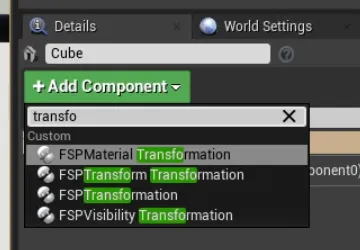
To each object to be tracked you need to attach FSPObject Component
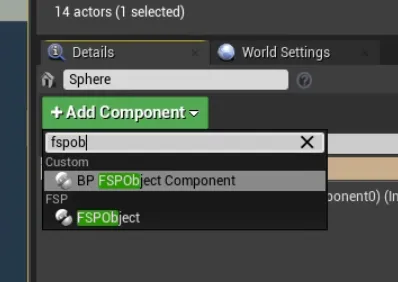
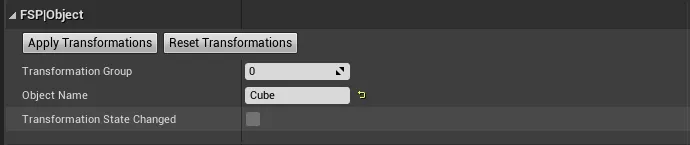
Within the components you need to change the Object Nameand potentially the transformation group, but we’ll cover that later. Object name determines how the object will look in the automated logs, so make sure you use a unique one.
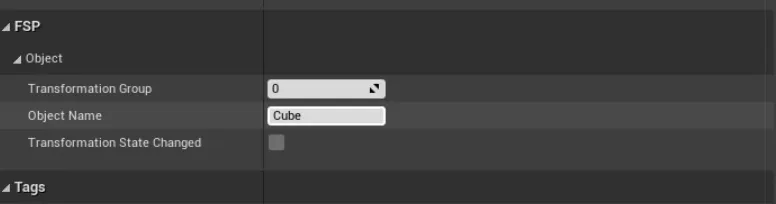
That the object is attached should be visible in the Editor FSP mode
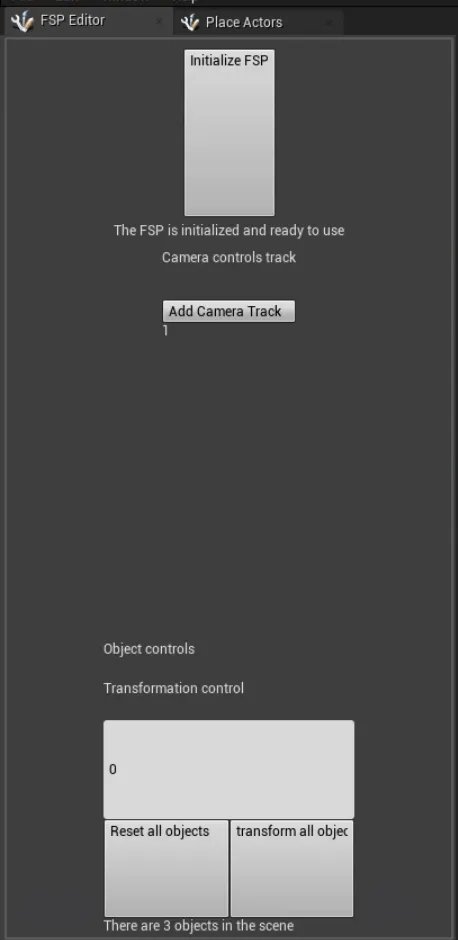
And the objects are automatically attached to the FSP Manager
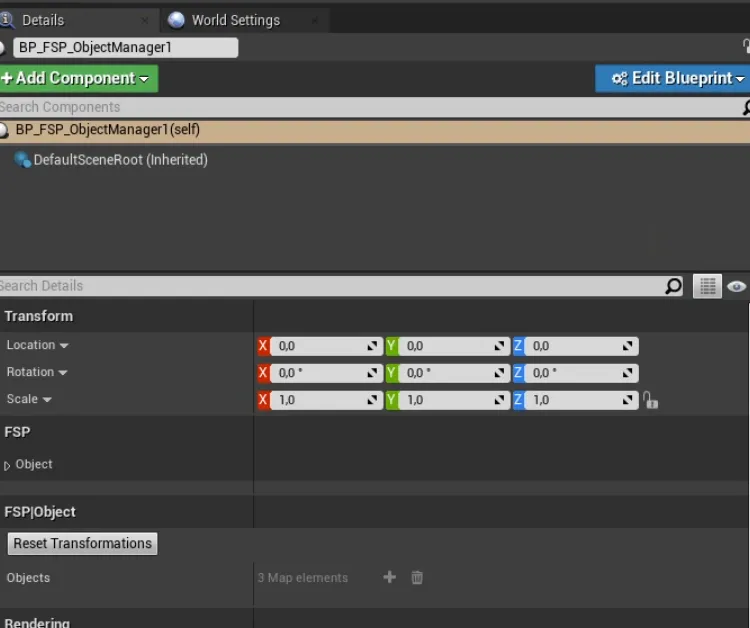
Transformations
If you want certain changes to happen to objects automatically, you can use transformations. Simply add a transformation component to your FSP object. Currently three different transformations are available (visibility, material and transform). You can apply multiple transformations at the same time.
Details about how to set each one will be covered in each separate section. You can see how the transformation looks by clicking the Apply Transformations button on the FSPObject.
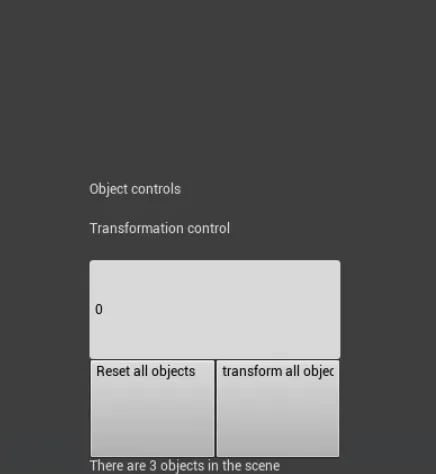
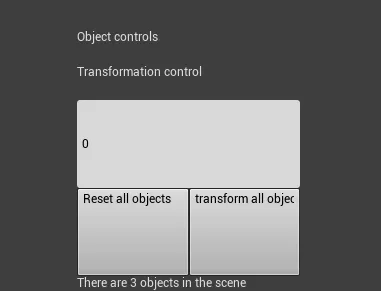
Transformations are controlled by the FSP Editor Mode . You can
- Reset all objects - returns all object states to the original
- Transform all objects in a group- applies transformations to all objects in the group given by the (see below)
Transformation groups
In most experiments, you want each screenshot to feature only a single change. But there might be several objects transforming in each location. For this reason, you have the opportunity to separate the individual transformations into groups.
Applying transformations
Material transformation
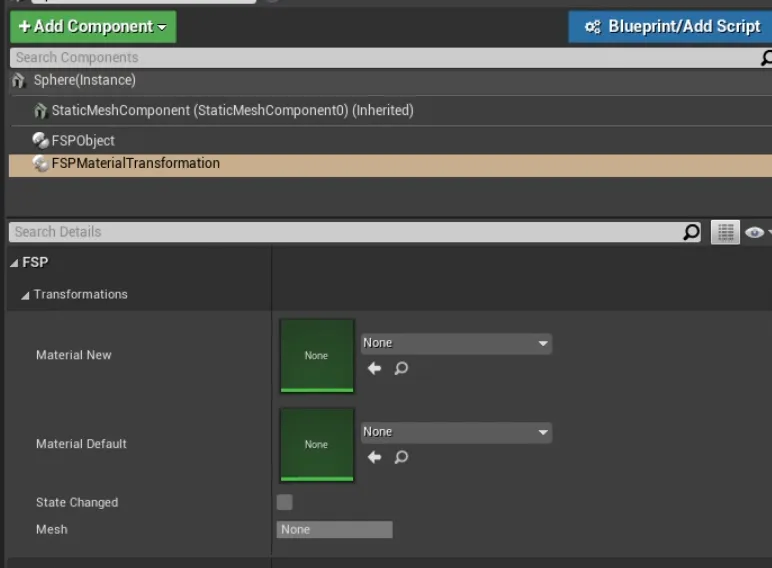
Material transformation takes original and a new material as parameters to be set.
Transform Transformation
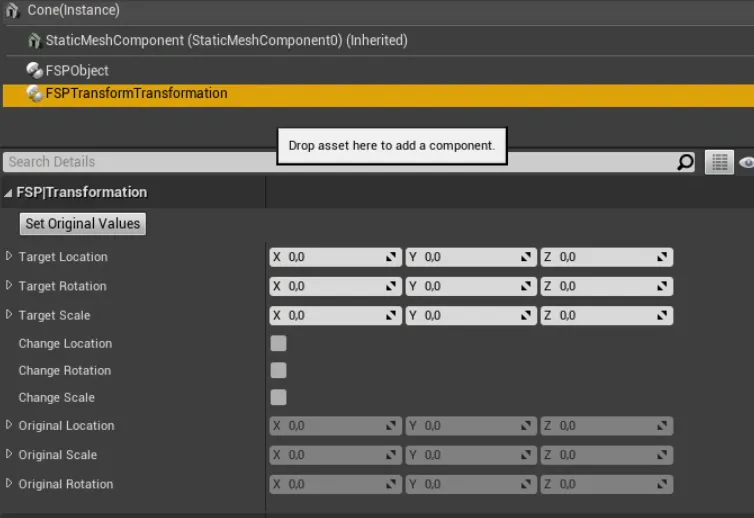
Transform takes the full transform parameters. You can change locations, rotation or scale. You also need to determine, which parameters you might want to change. Before setting the parameters, do not forget to click “set original values” button, to mark the original position of the object
Visibility transformation
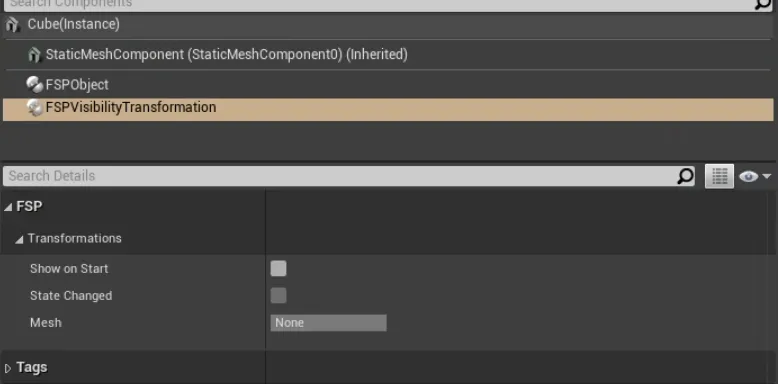
This has only a single parameter to set. The Show on Start determines if the object will hide or show during tranformation. Show on Start means that the transformation will hide it, leaving it unchecked will make the object appear. You can use this transformation to make certain objects switch between one another (one hides, the other one appears)
Applying transformation
You can apply all transformations on a particular set of objects in the fsp ediotr mode by entering the group of transformation you want and then click on transform all objects