Scene recording
Recording and logging
Recording generally stands for capturing the data associated with the camera travelling along the predetermined track. You can either record video or record screenshots at particular intervals.
Scene Analysis
The scene analysis is a component attached to the Recorder and it is responsible for scanning the scene and reporting all the information about the objects of interest placed there. Please see the detailed output in the data section.
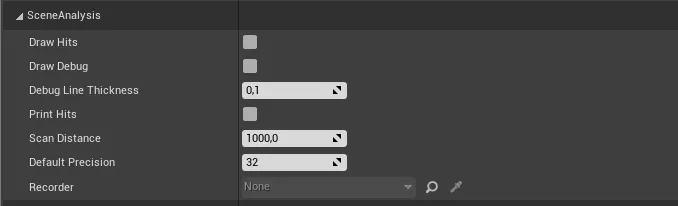
In effect, the scene analyzer shoots a string of X raycasting lines (determined by the Default Precision parameter) and returns if the cast hits any object marked with the FSP object component.
You can set the scene Analysis parameters in the FPS recorder to better suite you need.
- Scan Distance: To what distance should be the objects considered
- Default Precision: This determines how many scanning raycasts are thrown from the camera
Debug parameters
- Draw Hits
- Draw debug
- Debug line thickness
- Print Hists
Recording video
The video recording is a bit more involved. As the real time rendering might not be possible, the video data is generally split into two processes:
- Video rendering
- Smooth movement data extraction and logging
The FSPRecorder object is responsible only for the data loggign and extraction, not for the video recording. The video generation should be done using animation timeline like virtual production sets. The tutorial will be available soon.
Recording screenshots
Recording screenshots is a straightforward process, but you might need to change a few settings first.
You can simply start a level in the editor and then press E to get to the menu. You can click “record screenshots” and the process will start. Screenshots are by default saved to your project “saved” folder, the data to the “logs” folder.